Screenshot Editor - Screenshot Edit Online
Upload any screenshot, our AI will automatically detect the text, let you edit it instantly, and download the image in HD.
Best Screenshot Editor Tool Online
Screenshots are everywhere today. People use them at school. People use them at work. People share them on social media every day. A screenshot shows what appears on a screen. It captures messages. It captures errors. It captures proof. It captures ideas.
Many people send screenshots in emails. Many people post screenshots on Instagram. Many people use screenshots in tutorials. Screenshots help explain things fast. Screenshots often need changes. A screenshot may show wrong text. A screenshot may show private data. A screenshot may show a mistake.
This problem creates a need. People need to fix screenshots fast. People need to fix screenshots online. People need simple tools. A screenshot edit online tool solves this problem. It lets users edit images in a browser. It saves time. It removes stress.
Today, speed matters more than ever. People do not want complex software. They want quick results. Online editors load fast. They work on any device. They help users crop images. They help users blur details. They help users add notes and arrows. This makes communication clear.
A good screenshot editor makes work easier. It helps students. Also, it helps creators and it helps businesses.
What is a Screenshot Editor?
A screenshot editor is a tool. It lets users change screenshots. It works on images taken from screens. A screenshot editor can crop images. It can blur parts. It can add text. It can replace text. Some tools only crop images. Some tools only draw arrows. Advanced tools do more.
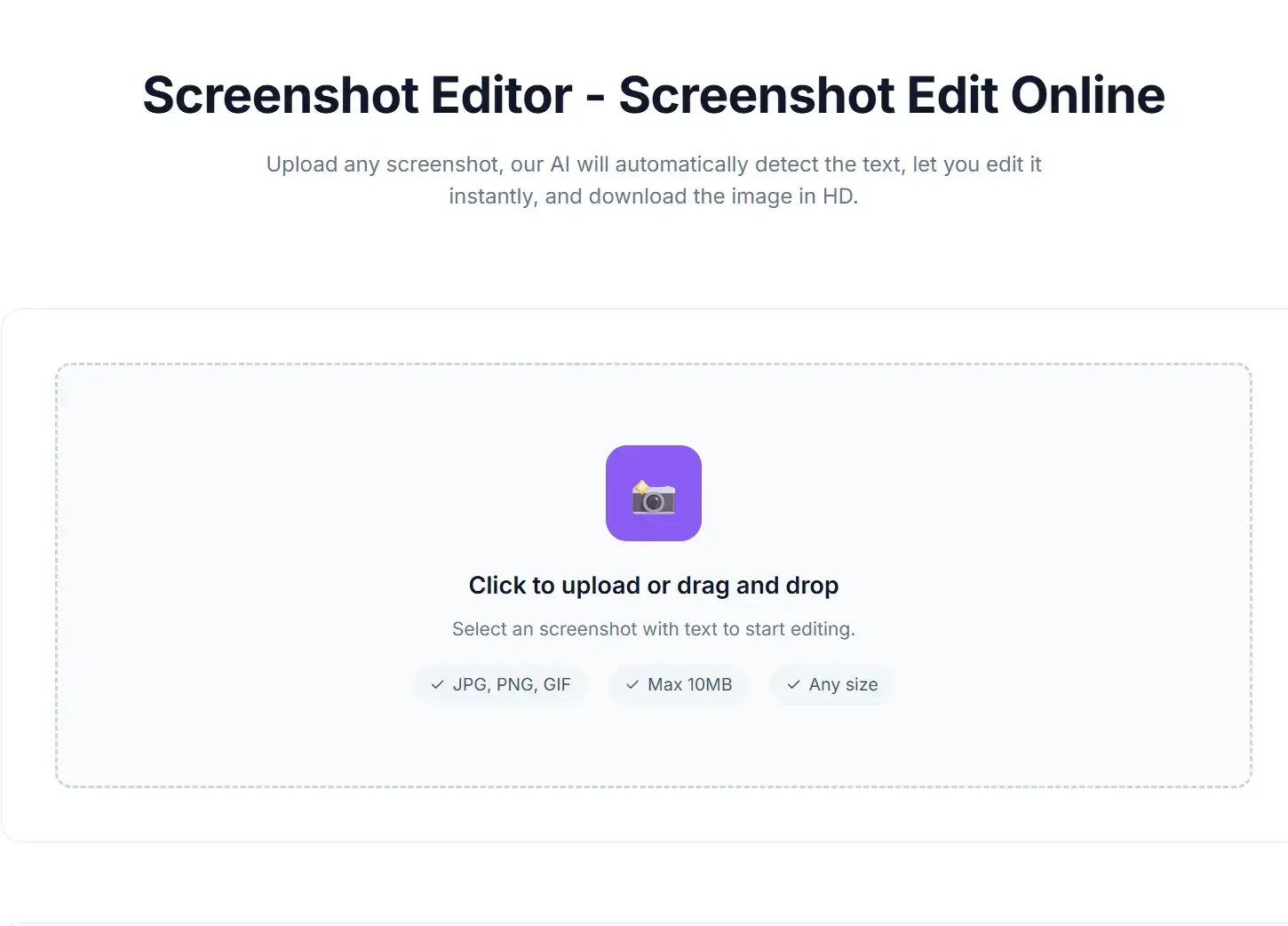
An advanced screen capture editor allows text editing. It allows text removal. It allows clean replacements. An editable screenshot tool works online. It runs in a browser. It needs no installation. Users upload a screenshot. The tool detects text areas. The user edits the image. The user downloads the file.
These tools help fix mistakes fast. They help hide private data. They help update prices or names. They help correct spelling errors. Many editors use smart detection. They find letters and numbers in images. This makes editing simple. Users do not need design skills. They do not need training.
Online screenshot editors save space. They do not use storage. They do not slow systems. They work on phones. They work on tablets. They work on laptops. This flexibility makes them useful. A good screenshot editor fits into daily work.
Screenshot Editing vs Photo Editing
Screenshot editing focuses on clarity. Screenshot editing focuses on accuracy. Screenshot editing focuses on speed. Photo editing focuses on beauty. Photo editing focuses on colors. Photo editing focuses on effects. Screenshot editors keep things simple. Photo editors feel complex. Screenshot editors help daily tasks. Photo editors serve creative work.
Screenshot editors solve practical problems. They help explain steps. They help show errors. They help highlight details. They remove distractions. They keep the message clear. Most tools offer basic features. These include crop, blur, arrows, and text. Users learn them fast. Results appear in seconds.
Photo editors aim for visual impact. They use filters. They adjust lighting. They change tones. They often require practice. They include many panels and options. This can slow users down. It can confuse beginners.
Screenshot editing tools stay focused. They work with flat images. They preserve original meaning. They avoid heavy effects. This makes them ideal for work, school, and support teams. When speed matters, screenshot editors are the better choice.
Why Online Tools Are Better Than Software
Online tools run in a browser. Online tools load fast. Online tools work everywhere. Software needs installation. Software uses storage. Software slows devices. A screenshot edit online tool works on any device. It works on phones. It works on laptops. Online tools suit beginners. Online tools save time.
Online editors remove many barriers. Users do not need accounts. Users do not need updates. Users do not need licenses. They open a page and start editing. This makes work smoother. This reduces frustration. Many people switch devices during the day. Online tools follow them anywhere. Files stay easy to manage.
Traditional software demands learning. It has menus. It has settings. It has updates. This slows simple tasks. Online screenshot editors stay focused. They offer only what is needed. This keeps editing fast and clear.
Online tools also support teamwork. Users share links. Users send files quickly. This helps remote work. It helps students. It helps businesses move faster without extra steps.
Key Benefits of Using Screenshot Edit Online Tools
Online screenshot tools offer many benefits. These tools simplify editing. These tools remove barriers. No download required. No setup required. No learning curve required.
Online editors are easy to access. Users open a browser. Users upload a screenshot. Editing begins right away. This saves valuable time. This avoids frustration. People do not wait for installs. People do not manage updates. Everything works in one place.
Edit Screenshots Anytime. Online tools work anytime. Users edit screenshots at home. Users edit screenshots at school. Users edit screenshots at work. The browser opens the editor. The work starts instantly.
These tools fit modern life. People work across time zones. People switch devices often. Online screenshot editors stay available. They work on any system. They support fast fixes. They help users respond quickly. This makes communication clear. It also keeps projects moving without delay.
Screenshot Editor Tool are Perfect for Students & Professionals
Students use screenshots for notes. Students use screenshots for homework. Students use screenshots for research. Screenshots help save important information fast. They capture slides. They capture examples. They capture instructions. A screenshot editor helps students clean these images. It removes errors. It hides private data. It adds labels and highlights. This makes studying easier.
Professionals use screenshots for reports. Professionals use screenshots for guides. Professionals use screenshots for emails. Screenshots explain ideas clearly. They show problems. They show solutions. A screenshot editor helps professionals stay precise. It fixes text. It updates details. It keeps information accurate.
A screenshot editor fits both groups. It saves time. It reduces mistakes. It improves communication. It works without training. This makes it useful in daily school and work tasks.
Screenshot Edit Online Tool Saves Storage & System Space
Online tools use cloud power. They save local storage. They protect device performance. No heavy software runs in the background. This keeps systems fast. This keeps devices responsive. Users do not worry about disk space. They avoid clutter.
Traditional editing software takes space. It installs large files. It adds updates. It creates cache folders. Over time, this slows devices. Online screenshot editors avoid this problem. They run only when needed. They close cleanly after use.
This matters for laptops and phones. These devices have limited storage. They also have limited memory. Online tools respect these limits. They allow fast editing without stress. Users get results without sacrificing performance. This makes online screenshot tools a smart choice for everyday use.
Features of our Screen Capture Editor
A strong screen capture editor includes key features. These features improve results. They boost productivity.
Edit Text Inside Screenshot
- This feature matters most. Screenshots often contain text. Users need control over that text.
- A good editor allows text replacement. It keeps alignment clean. It keeps font size balanced.
Remove or Replace Existing Text
- Mistakes happen often. Prices change often. Dates change often.
- A strong tool removes old text. It adds new text cleanly. It hides the edit marks.
Add Shapes, Arrows & Highlights
- Shapes guide attention. Arrows show direction. Highlights show importance.
- This feature helps tutorials. This feature helps presentations. This feature helps training material.
Blur Sensitive Information
- Privacy matters online. Screenshots can show emails. Screenshots can show phone numbers.
- A blur tool hides sensitive data. It protects users. It protects clients.
Crop & Resize Screenshot
- Cropping removes clutter. Resizing improves layout.
- A screenshot editor should allow both actions. The tool should keep image quality high.
High Quality Download Option
- Low quality ruins screenshots. Blurry images reduce trust.
- A good editor exports clear images. It keeps resolution sharp.
How Editable Screenshot Tools Work (Simple Explanation)
Editable screenshot tools follow a simple process. Anyone can use them.
Upload Your Screenshot
Users upload an image. The image loads in the editor. The screen shows editing options.
Select Area to Edit
Users click on text areas. Users select shapes. Users choose sections. The tool highlights editable parts.
Replace or Add New Text
Users type new text. The tool adjusts spacing. The tool matches layout. The screenshot looks natural.
Save Edited Screenshot
Users download the image. The file saves instantly. The work finishes.
Common Problems People Face Without a Screenshot Editor
Many users struggle without proper tools. They cannot edit text in screenshots. They need advanced software. They face low quality results. The process takes too long. The learning curve feels steep.
Without the right tool, simple edits become problems. Users try workarounds. They crop too much. They draw messy text on top. The result looks unprofessional. This wastes time. This creates frustration. Many people give up before finishing.
A screenshot edit online tool solves these issues. It removes complexity. It saves time. Users focus on results. Users avoid frustration. The interface stays simple. The tools stay clear. Text becomes editable. Edits look clean. Tasks finish faster.
These tools help users work smarter. They reduce stress. They improve accuracy. They turn a difficult task into a quick step.
Tips to Make Your Edited Screenshot Look Professional
Professional screenshots build trust: Clean edits improve clarity.
Use Same Font Style: Font mismatch looks fake. Font consistency looks real.Match the existing style.
Maintain Proper Alignment: Text should align cleanly. Spacing should feel natural.Poor alignment breaks realism.
Don’t Over-edit Screenshot: Too many edits distract users. Simple edits work best.Keep the image clean.
Keep Image Quality High: Always export high resolution. Avoid compression loss.Clear images look professional.
Use Highlight & Blur Carefully: Use highlights with purpose. Use blur only when needed.Balance improves readability.
Editable Screenshot vs Traditional Editing Methods
Traditional methods require software. Traditional methods require skills.Editable screenshot tools remove barriers. They work faster. They feel easier.Online tools win for daily use.
Use Cases of Screenshot Edit Online Tools
- People use these tools in many ways.
- They fix mistakes in screenshots. They update prices. They change dates.
- They create social media posts. They make tutorials. They design marketing creatives.
- The use cases grow every day.
Safety & Privacy While Editing Screenshots Online
Privacy matters online. Trust matters online.Good tools follow no storage policies. They delete files automatically.Secure editors protect users. Trusted tools matter.Users should choose wisely.
Final Thoughts – Why You Need a Screenshot Editor Today
The digital world moves fast. Screenshots appear everywhere.Editing screenshots feels like a daily task now.A screen capture editor saves time. It removes complexity. It improves results.An online screenshot editor offers the best solution today.